Glidepad

Touchpad gestures · Chrome & Edge

The gestures
your browser forgot.

Not new movements to learn: the same two-finger swipe, flick and pinch you already make. The browser drops them; Glidepad turns them into opening a site, going Back, reloading a page and handling tabs.

Chrome and Edge on Windows · no account, no sign-in
no network requests, no page content read

Live check

stream
Swipe here with two fingers then do it twice, quickly — this pad runs the real recognizer
· Waiting for a gesture.
events
0
peak
0.00px/ms
flicks
0
device

The gestures

Five movements, none of them new

Your hand already makes all five. Glidepad only decides what they mean.

Horizontal

Double swipe → your site

Two quick swipes the same way open the address you assigned to that direction — one for left, one for right. Point them at the inbox and the tracker you open forty times a day.

Horizontal

Single swipe → Back, as before

Nothing is taken away. One swipe still walks browser history — it just waits out the window for a second swipe first. Leave a direction empty and even that wait disappears.

Vertical

Two flicks at the top → reload

Two sharp flicks that keep pulling a page with nowhere left to go — the same movement as pull-to-refresh on a phone. Mid-page it stays silent: there that movement is ordinary scrolling, and on the vertical axis Glidepad only watches, it never blocks. Reload is the default; a new tab or closing one are yours to pick instead.

Pinch

Spread a link → background tab

Spread two fingers over a link or a video thumbnail and it opens behind what you are reading, like a middle click. The only gesture that cares what is under the cursor — everywhere else, spreading still zooms.

Pinch

Pinch twice → close tab

Two quick pinches close the tab. Only at normal zoom: while a page is zoomed in, pinching gives the zoom back and the tab is left alone — so coming back from a zoom never costs you the page.

Not mouse gestures

The browser eats what your touchpad sends

Gesture extensions have existed for twenty years, and they all ask for the same thing: hold the right mouse button, draw an L, let go. That is a different hand and a different habit — and on a laptop, a mouse you do not have.

Glidepad works with the surface under your thumbs. The catch is that browsers expose no touchpad API at all. Everything a page can see about a five-contact precision touchpad is a stream of wheel events with two numbers in them.

Controls

Thresholds you can see, not guess at

Every number the recognizer runs on is in the options page. Nothing is hidden behind a “sensitivity: medium” slider.

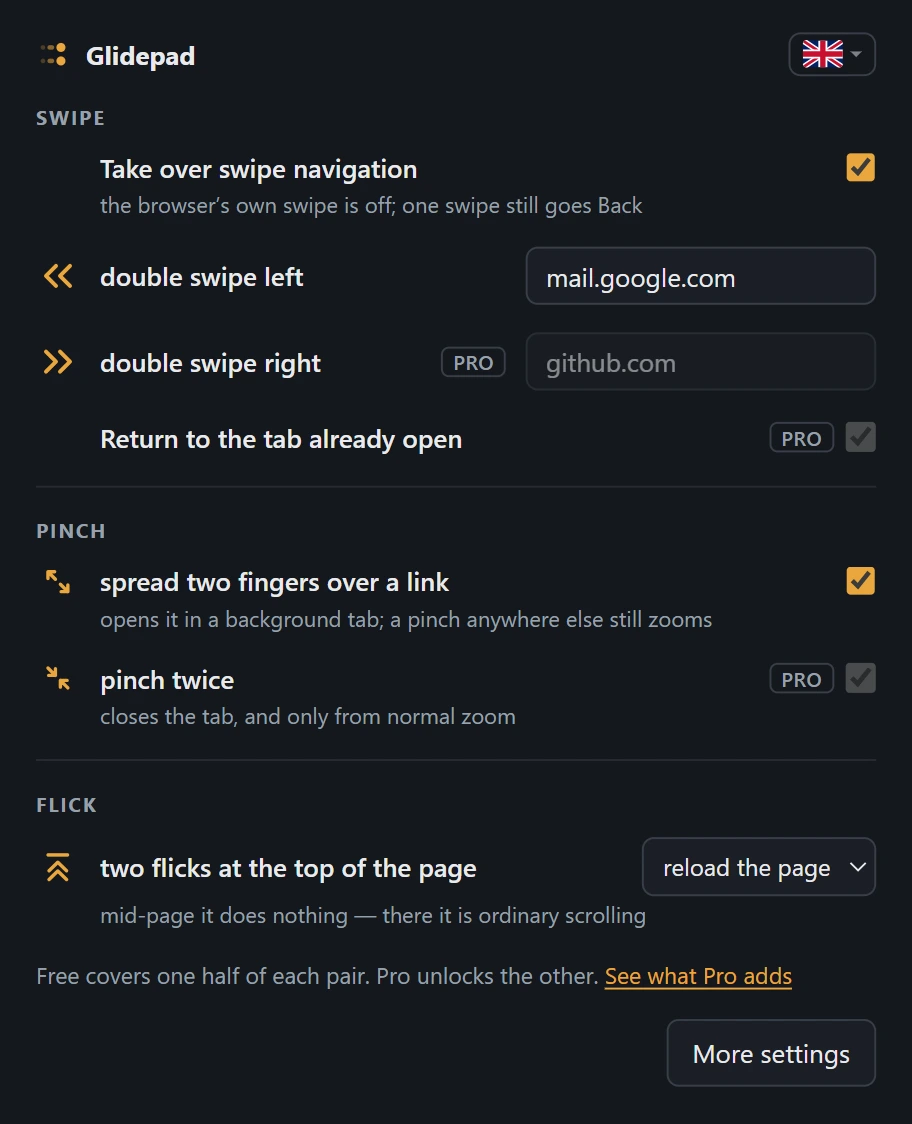
The Glidepad popup: one row per gesture. Double swipe left opens mail.google.com, double swipe right is marked Pro, spreading two fingers over a link opens it in a background tab, pinching twice closes the tab, and two flicks at the top of the page reload it.

The popup

Every gesture on one screen

Click the icon and there is nothing else to find. One row per gesture, named by the movement your fingers make, with the address behind each direction right there in the row. The half of each pair that Pro unlocks is marked, not hidden — you can see what you would be buying before you buy it.

The numbers are one click deeper, behind More settings: how long to wait for a second flick, how far it has to travel, how sharp it has to be. The flag in the corner switches the interface between sixteen languages.
Swipe takeover

Two things cannot own one swipe

Browser swipe navigation fires on the slightest movement, and some pages start it from their own inner scroller. While Glidepad is on it is off across the whole page, both directions, and Glidepad walks history itself. One checkbox in the popup hands it all back.

Tab reuse

New tab, or back to the same one

A double swipe can open a fresh tab every time, or jump back to the tab it opened last time. Close that tab and the next swipe opens it again.

Tuning

Sharpness, window, distance

How sharp a flick has to be in px/ms, how long to wait for a second one, how far a movement has to travel, and how far the velocity must jump to count as a new flick rather than a ripple in the tail.

Stays out of the way

Carousels keep scrolling

While there is still room to scroll sideways under the pointer, the swipe belongs to the page — wide tables and image strips behave exactly as they did. Pinch-zoom is never touched.

Privacy

It reads wheel events. That is the whole story.

Glidepad has no backend. There is no account to create, no telemetry to opt out of, and no request leaving your machine — because there is nowhere for one to go.

It does run on every site, and Chrome will tell you so when you install it. That permission exists because gestures happen everywhere, not because anything is being read. The full text is in the privacy policy.

Accounts
none
Analytics, telemetry
none
Network requests from the extension
none
Page content read
none
Manifest permissions
storage
Where settings live
your browser sync

Pricing

Free to navigate. Pro for both directions.

Every threshold in the recognizer, and the swipe takeover that keeps the browser out of the gesture, are free and stay free. Pro is the second half of each pair.

Free always

$0

  • Double swipe to one site, in one direction
  • Single swipe history navigation
  • Two flicks at the top: reload, new tab, close tab or nothing
  • Spread a link open in a background tab
  • The browser's own swipe navigation switched off, both ways
  • Every threshold in the options page
Get notified at launch

Pro monthly

$2.99/ month

the same Pro, cancel whenever

  • Everything in Pro yearly
  • Month to month, no commitment
  • Switch to yearly any time
Join the Pro waitlist

Prices in USD. Whether tax is added on top or already included depends on where you are; the total is shown before you pay. Pricing in full.

Pro is not on sale yet

The extension is being finished and the store listing prepared. Leave an address and you get exactly one email when it goes live — no drip sequence, no newsletter.

One message, then the address is deleted. Details in the privacy policy.

Questions

Before you ask

Which browsers and which machines?

Chrome and Edge, built and tested on Windows with a precision touchpad. A Firefox build exists and ships once it has had the same testing.

macOS is not verified yet. Chrome runs there and the same events arrive, but macOS also does its own two-finger navigation, and until that combination has been tested properly it is not a supported platform.

Will this break scrolling?

No. On the vertical axis Glidepad never calls preventDefault — it watches and nothing more, so the page scrolls exactly as it did. Horizontally it steps in only when there is nothing left to scroll sideways under the pointer, which is precisely when the browser would have navigated anyway.

Why does one swipe feel slightly delayed?

Because the second one might still be coming, and there is no way to know before the window closes. The wait is the default 450 ms, it is yours to change, and a direction with no site assigned has no wait at all.

Do I need a mouse for any of it?

No — the opposite. Glidepad is for the machine you already have open on your knees. A mouse wheel sends the same event type but in large, identical steps; the live check at the top of this page will tell you which one it is looking at.

Who am I buying from?

The software is made and supported by Ivan Korost, working alone. Nothing is on sale yet. When Pro opens, the payment itself will run through a third-party merchant of record — an authorised reseller that becomes the seller on your invoice and handles VAT and sales tax for your country. Its name will be on the checkout, on the receipt and on your card statement, and it will be named here before the first sale.

What if it does not work on my touchpad?

Then you get your money back — 14 days, no argument, see the refund policy. Try the live check above first: it runs the same recognizer the extension ships with, so if it counts your swipes, so will Glidepad.